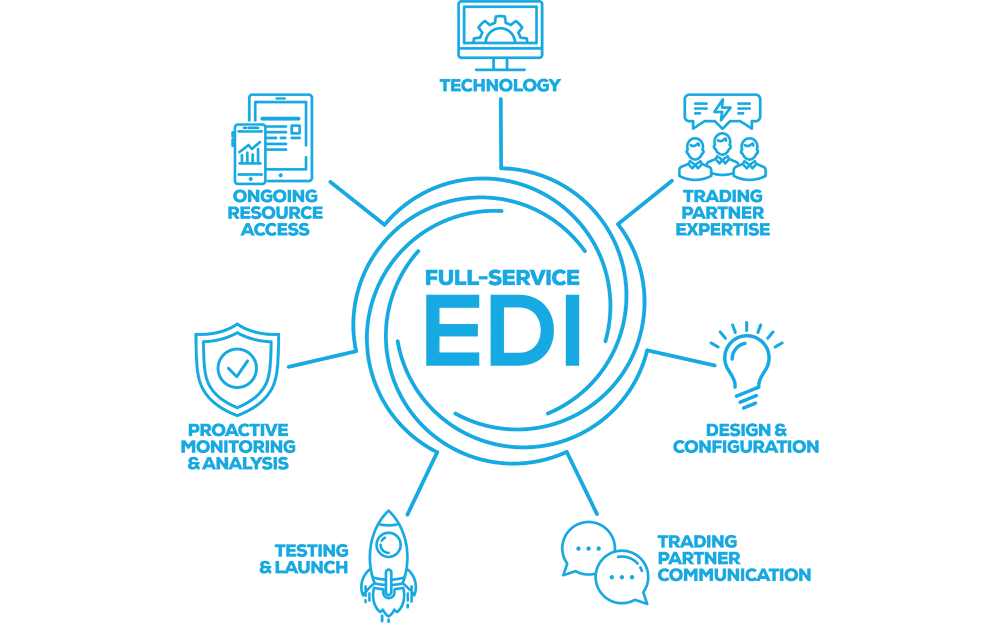
Implementing the EDI 810 (Invoice) document in SPS Commerce involves configuring the tool to map, transmit, and validate the EDI data according to trading partner requirements. Here’s a step-by-step guide:
---
### **Step 1: Gather Requirements**
1. **Understand Trading Partner Specifications**: Obtain the 810 EDI Implementation Guide (specifications) from your trading partner.
- Identify required segments, elements, and codes.
- Understand any validation rules or business-specific requirements.
2. **Define Business Rules**: Work with internal teams to outline the invoicing data flow and confirm all necessary data points are captured.
---
### **Step 2: Configure SPS Commerce Tool**
1. **Log in to SPS Commerce Fulfillment**:
- Access the web portal or integration tool provided by SPS Commerce.
- Ensure you have administrative privileges to configure document settings.
2. **Set Up Trading Partner Connection**:
- Navigate to the "Connections" or "Trading Partner Setup" section.
- Add or update the trading partner's profile to enable the 810 document type.
3. **Enable EDI 810 Document**:
- Locate the document setup menu for the trading partner.
- Select "810 Invoice" and ensure it is enabled.
4. **Map Data Fields**:
- Use SPS Commerce’s mapping tools to map your internal data (ERP or accounting system) to the 810 format.
- Map mandatory segments like **ST (Transaction Set Header)**, **BIG (Beginning Segment for Invoice)**, **N1 (Name)**, **IT1 (Invoice Line Items)**, and **TDS (Total Monetary Value Summary)**.
5. **Validate Mapping**:
- Perform test mapping for various scenarios (e.g., single item, multiple items, taxes, discounts).
- Ensure all required segments are mapped and optional ones are handled based on trading partner preferences.
---
### **Step 3: Test the Implementation**
1. **Generate a Test Invoice**:
- Create a sample invoice in your internal system.
- Export it to SPS Commerce.
2. **Run Mapping Validation**:
- Verify the data is translated into the correct EDI 810 format.
- Check the structure, syntax, and compliance with the trading partner’s specifications.
3. **Send Test EDI File**:
- Use the testing environment provided by SPS Commerce to transmit the 810 document to your trading partner.
- Work with the trading partner to validate and troubleshoot any issues.
---
### **Step 4: Go Live**
1. **Confirm Trading Partner Approval**:
- After successful testing, obtain trading partner approval to go live.
2. **Enable Production Mode**:
- Switch the EDI 810 configuration from the test environment to production.
3. **Monitor Initial Transactions**:
- Closely monitor the first few live transactions for errors or discrepancies.
- Use SPS Commerce’s monitoring tools for error alerts and transaction tracking.
---
### **Step 5: Maintain and Update**
1. **Periodic Reviews**:
- Regularly review and update mappings to accommodate any trading partner updates or internal system changes.
2. **Error Resolution**:
- Use SPS Commerce’s error handling tools to address failed transactions.
- Work with support if needed.
3. **Expand Functionality**:
- As needed, implement additional documents (e.g., 850, 856) to enhance integration with your trading partner.
---
### Tools & Resources
- **SPS Commerce Documentation**: Reference guides and tutorials.
- **EDI Validator**: To check compliance.
- **Support Team**: Contact SPS Commerce for assistance during setup or troubleshooting.
Would you like detailed examples of specific 810 segments or mapping logic?